That PDF from last week
Your recently opened documents are listed the moment the panel opens, before you type a thing.
Mac · Spotlight · Humble Tools
Press ⌘Space. Find the file.
Spotlight is quick with apps and answers, and vague about the one document you need. Humble Search opens beside it every time you press Cmd+Space and finds any file on your Mac by name in a few milliseconds, even when you mistype it.
$5 once, no subscription. Apple silicon Mac, macOS 26 or later. Notarized by Apple.
The pain
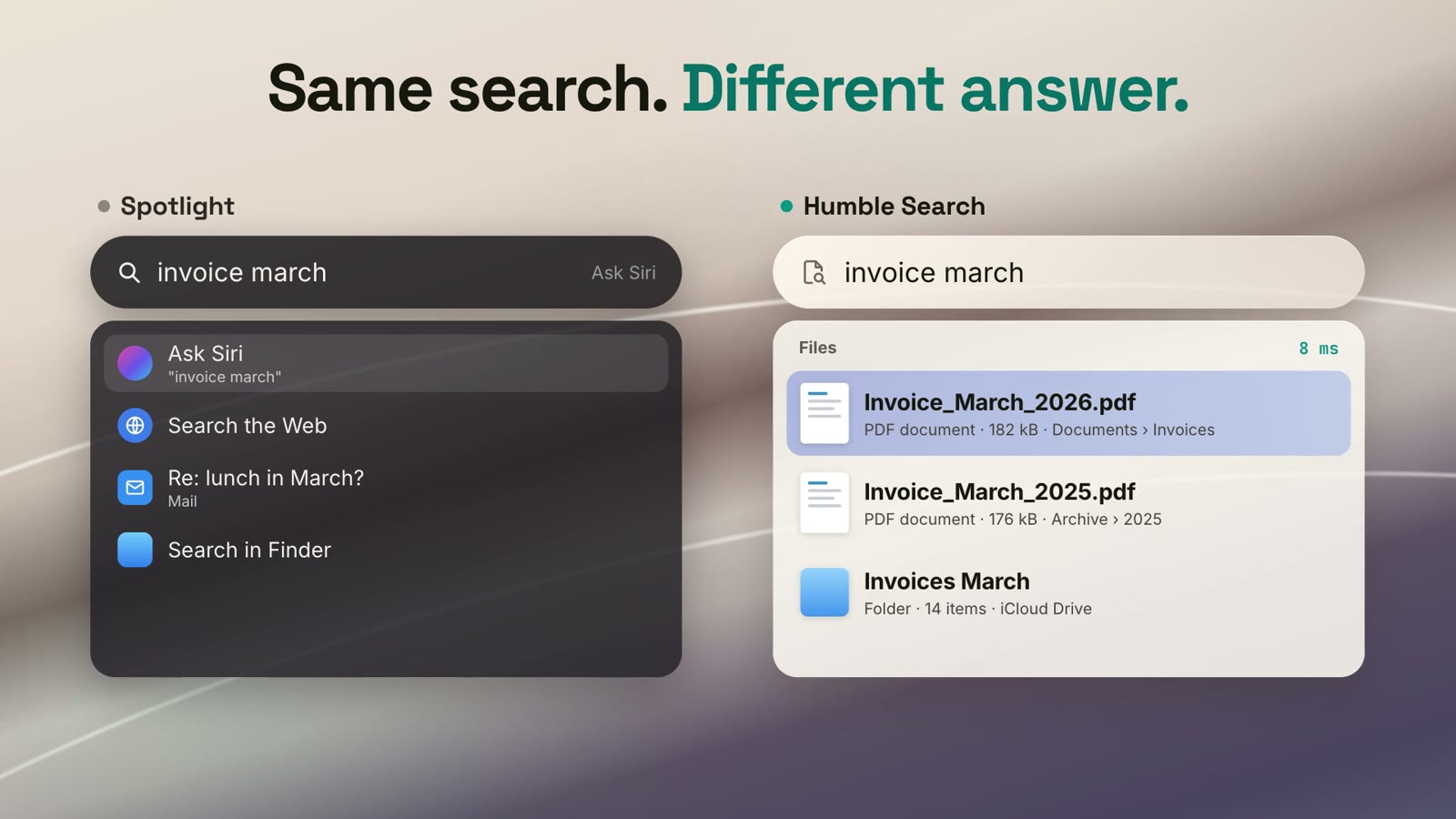
You type part of a name and get web suggestions, an app, a dictionary entry, and maybe the file, three rows down. Misspell one letter and it is gone. So you open Finder and dig through Downloads instead.
Humble Search keeps Spotlight exactly where it is and adds what it lacks: a list of files and folders, only files and folders, ranked so the name you meant comes first.
How it works
Spotlight opens as always. Humble Search appears right beside it with the cursor in its own search field, and your recently opened documents already listed.
Names match as you type and forgive a typo. Return opens the file, Cmd+Return shows it in its folder, Cmd+C copies its path.
What you type also goes into Spotlight's own field, so apps, answers and files sit side by side. Want Spotlight's view? It is still there.
What it is good at
Your recently opened documents are listed the moment the panel opens, before you type a thing.
Longer words forgive a wrong letter, so "invoce" still finds the invoice.
Your home folder, apps and connected drives, including folders Spotlight skips. Narrow it with in:~/Downloads when you want one folder.
Turn on Search inside files and grep:words finds documents by what they say. Off by default, because it uses more disk.
Full Disk Access for Documents, Downloads and Desktop, Accessibility to notice Cmd+Space. Both optional; a short guide walks you through.
Privacy
Pricing
$5 once
For up to 3 of your Macs
Secure checkout by Stripe. The download starts right after, and the link is in your receipt too. Not for you? Write [email protected] for a refund.
Search engine: fsearch by Noah Dunnagan, MIT license. Humble Search is the Mac app around it.
FAQ
No. Spotlight opens as usual; Humble Search sits beside it for files. Close either one with Escape.
Open the download and double-click Humble Search. It moves itself to Applications and opens a short guide. No dragging.
Apple silicon Macs with macOS 26 or macOS 27. The first run lists your disk once: about half a minute on our test Mac with 9 million files.
Full Disk Access lets it list Documents, Downloads and Desktop, which macOS protects. Accessibility lets it notice Cmd+Space and type along into Spotlight. Both are optional: without them it falls back to Spotlight's own results for those folders, and you click into the panel to type.
Up to 3 of your own Macs per purchase. If you have more, write us and we will sort it out.
Only names, sizes and dates, unless you turn on Search inside files. Either way the index stays on your Mac.